- The Software
- Support
- The System

The
Utter Command menu
The Utter Command menu gives you access to the Utter Command documentation,
on-screen guides, dialog boxes and utilities. When Utter Command is loaded
the Utter Command icon appears in your System Tray.

Right-clicking on the Utter Command icon brings up the Utter Command menu:
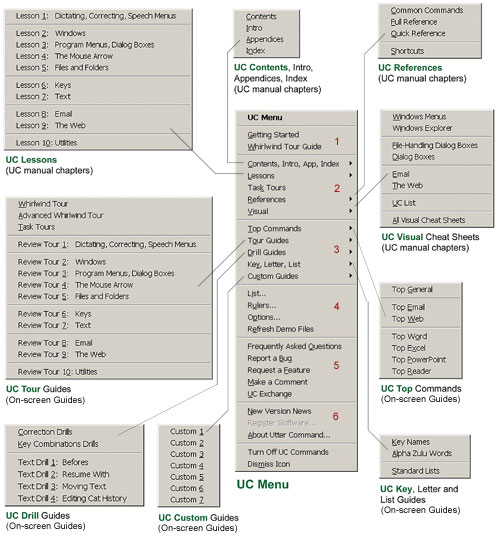
Utter Command menu description
Section 1 items help get you started with Utter Command:
|
-
|
Getting Started pdf |
|
-
|
Whirlwind Tour On-screen Guide. |
Section 2 has on-screen versions of all sections of the Utter Command manual (see UC Intro 5.1 for more details about the UC manual.)
|
-
|
Contents, Intro, Appendices, Index; Contents shows you what to say to get to any section or subsection of the UC manual. |
|
-
|
Lessons take you through every UC command and include examples and self-guided tours |
|
-
|
Task Tours of 36 common tasks include sending email, editing, browsing the Web, making an Excel chart, making a PowerPoint presentation (Task Tours list including videos) |
|
-
|
References include a Full Reference of every command with brief explanantions, Quick Reference of all commands, and Common Commands cheat sheet. |
|
-
|
Visual Cheat Sheets illustrate key Windows, Windows Explorer, dialog box, email, Web, and UC List commands. |
Section 3 has on-screen guides open in a thin window on the right side of your screen. Other programs size around the guides so you can see them at the same time
|
-
|
Top Commands show the top commands for common programs like Word and Excel |
|
-
|
Tour Guides show the UC Whirlwind, Task and Lesson Review tours |
|
-
|
Drill Guides show the Self-guided Drills from Lessons 1, 6 and 7. |
|
-
|
Key, Letter and List Guides show speech names for keyboard keys, letters, and the UC List presets. |
|
-
|
Custom Guides are blank on-screen guides you can type or paste into (say "Custom 1 File" to call up source.) |
Section 4 items bring up an Utter Command dialog box or screen element
|
-
|
UC List allows you to organize your own File, Folder, Web Site, email Nickname, Keyword and Reminder word lists so you can use a single command to get to any file, folder or Web site, set up an email message, find any keyword in any document, and set a reminder with any message (see UC UC List Visual Cheat Sheet and UC Lessons 5.6, 5.7, 8.4, 9.2, 10.1 and 10.13). |
|
-
|
UC Rulers puts rulers around your screen that help you more precisely control the mouse by speech. When the rulers are active you can say "Rulers Menu" to open a menu that allows you to control what the rulers look like (see UC Lesson 2.5). |
Sections 5 and 6 items bring up pages from the Utter Command Web site and the About dialog box.
One speech command away
You can use a single speech command to bring up any item on the Utter Command menu:
To call up any Utter Command menu or submenu item directly
|
·
|
say "UC" plus the first word -- or in cases of ambiguity two words -- of a menu item |
| Examples: | "UC Task" clicks UC Menu/Task Tours, which opens the Task Tours On-screen Guide | |
|
|
"UC Top" clicks the UC Menu/Top Commands/Top General, to open the Top Commands submenu | |
| "UC Top General" clicks the UC Menu/Top Commands/Top General to bring up the Top General Onscreen Guide | ||
| "UC Tour" clicks UC Menu/Tour Guides, which brings up the Tour Guides submenu | ||
| "UC List" clicks UC Menu/List, which opens the UC List dialog box |